FramePrompts
NewMaterialsMockupsTrending
Browse library ↘
Materials↗
Backgrounds↗
Mockups↗
Styles↗
Lifestyle↗
Effects↗
LogoTextObjects
Generations↗
ObjectsCharacters
View all prompt categories →
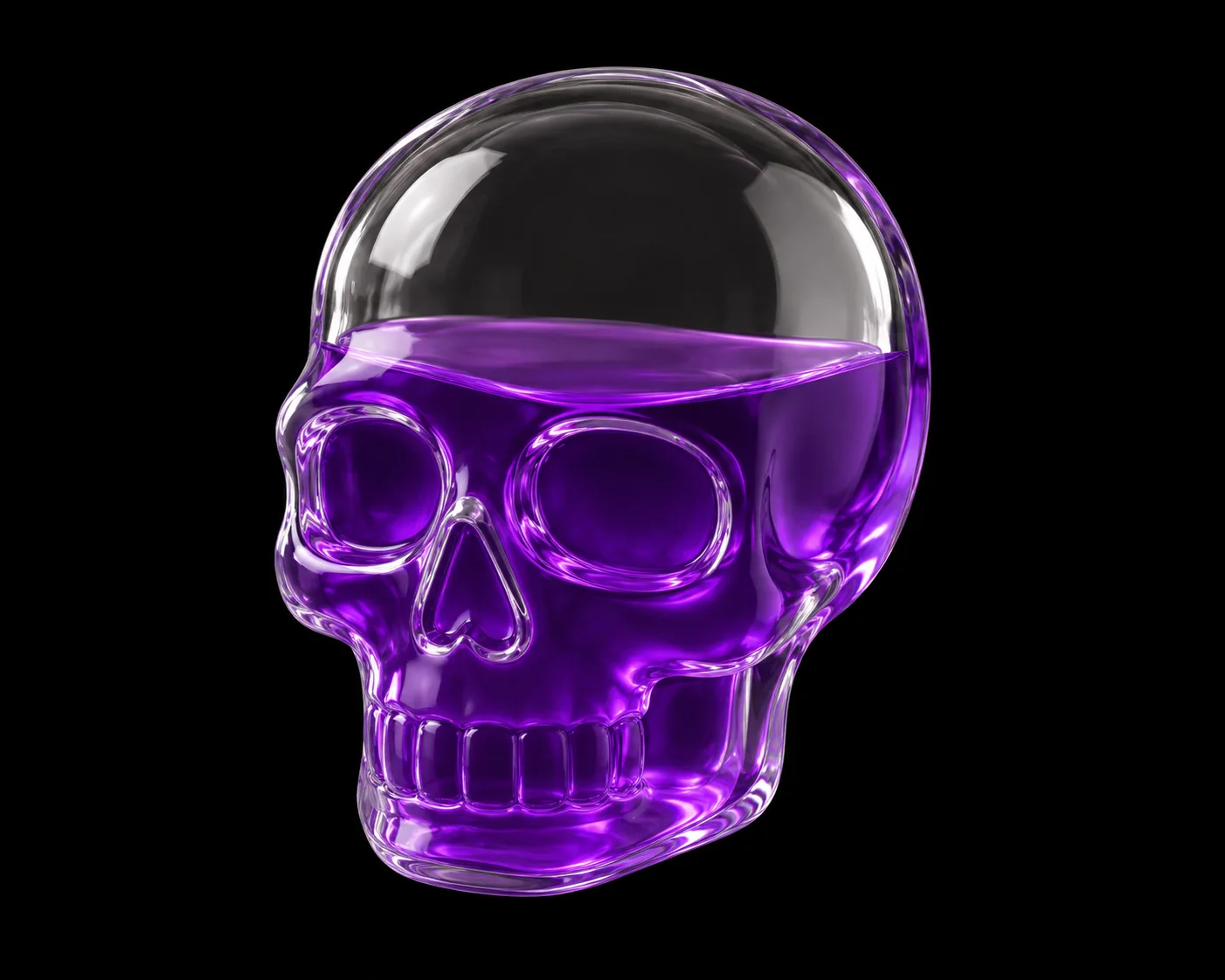
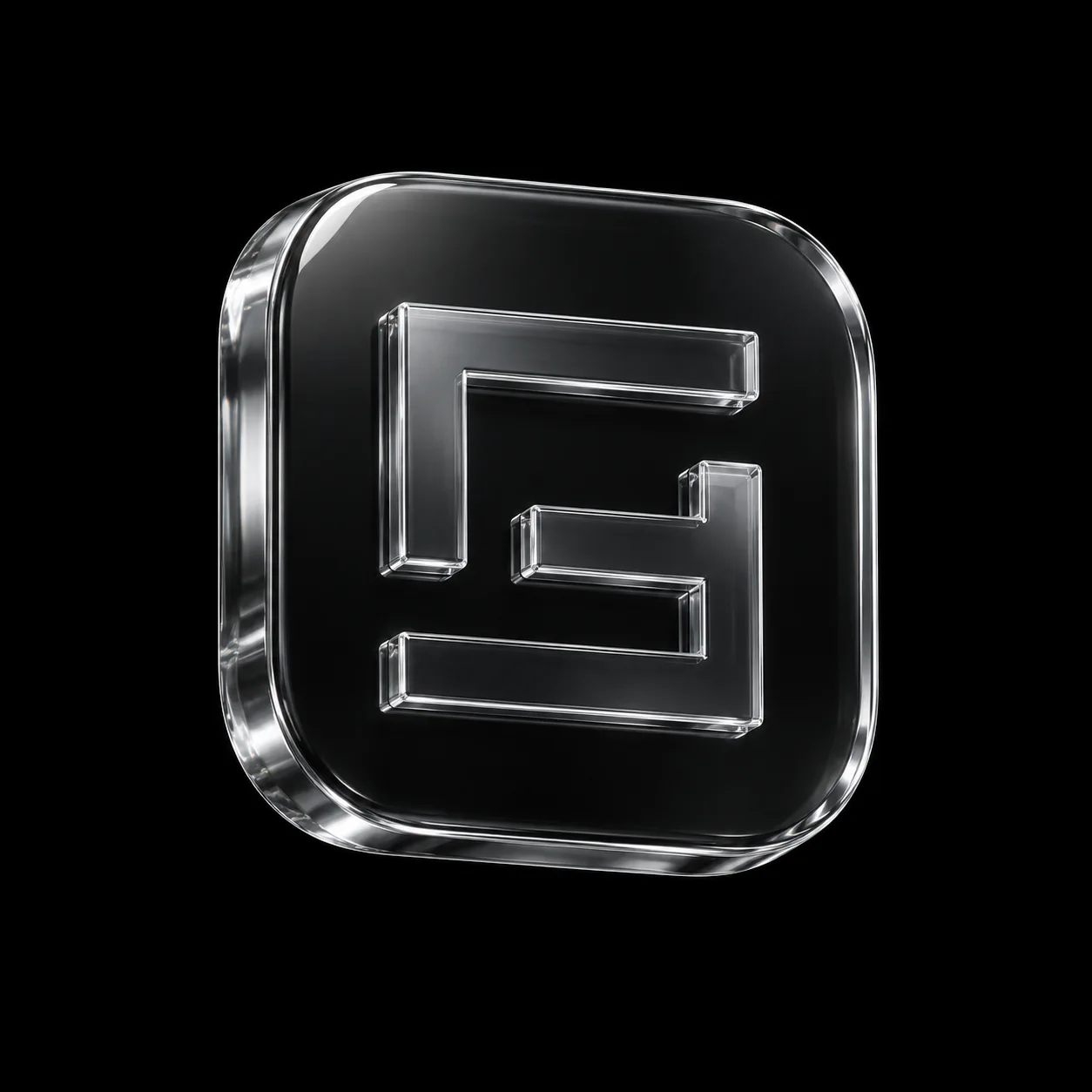
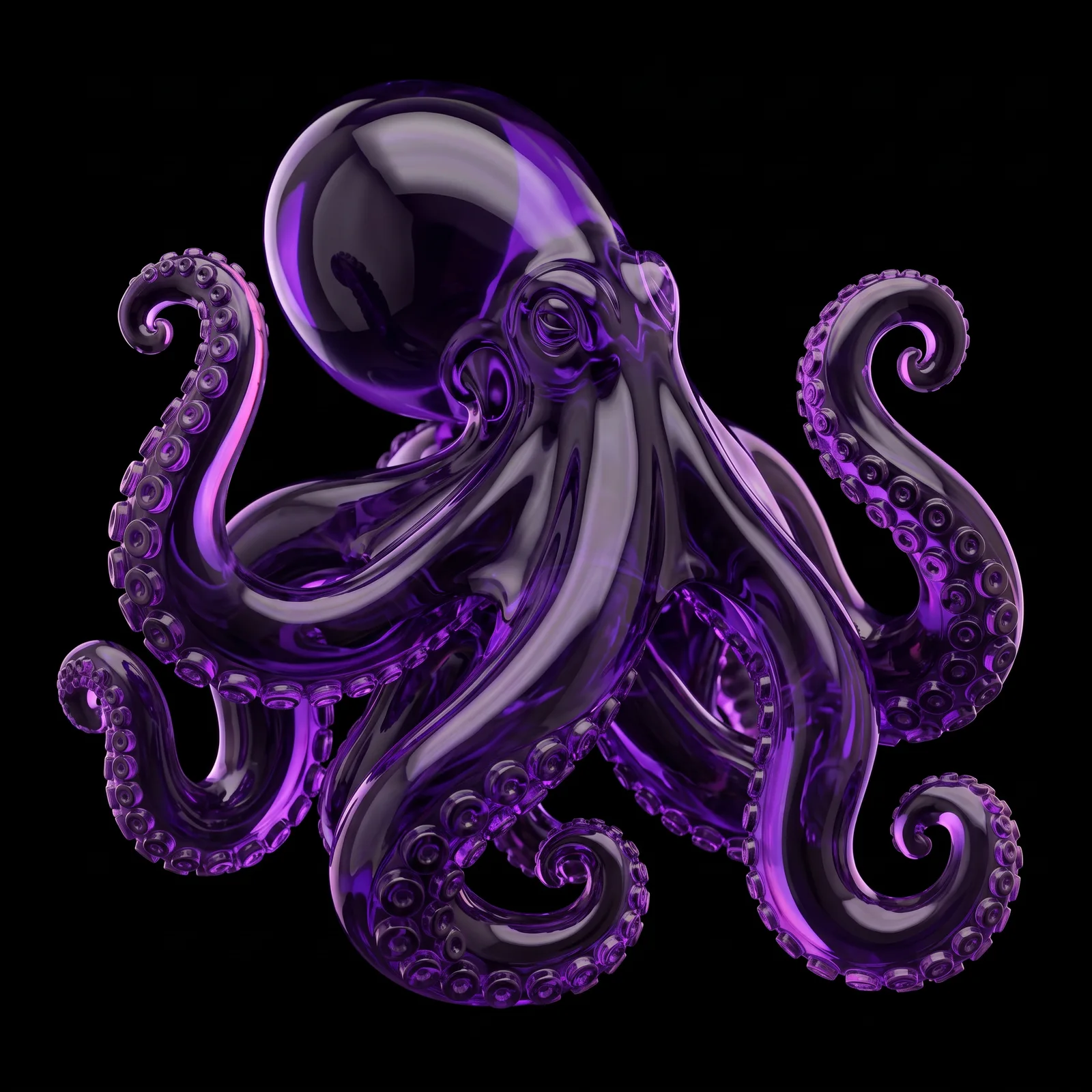
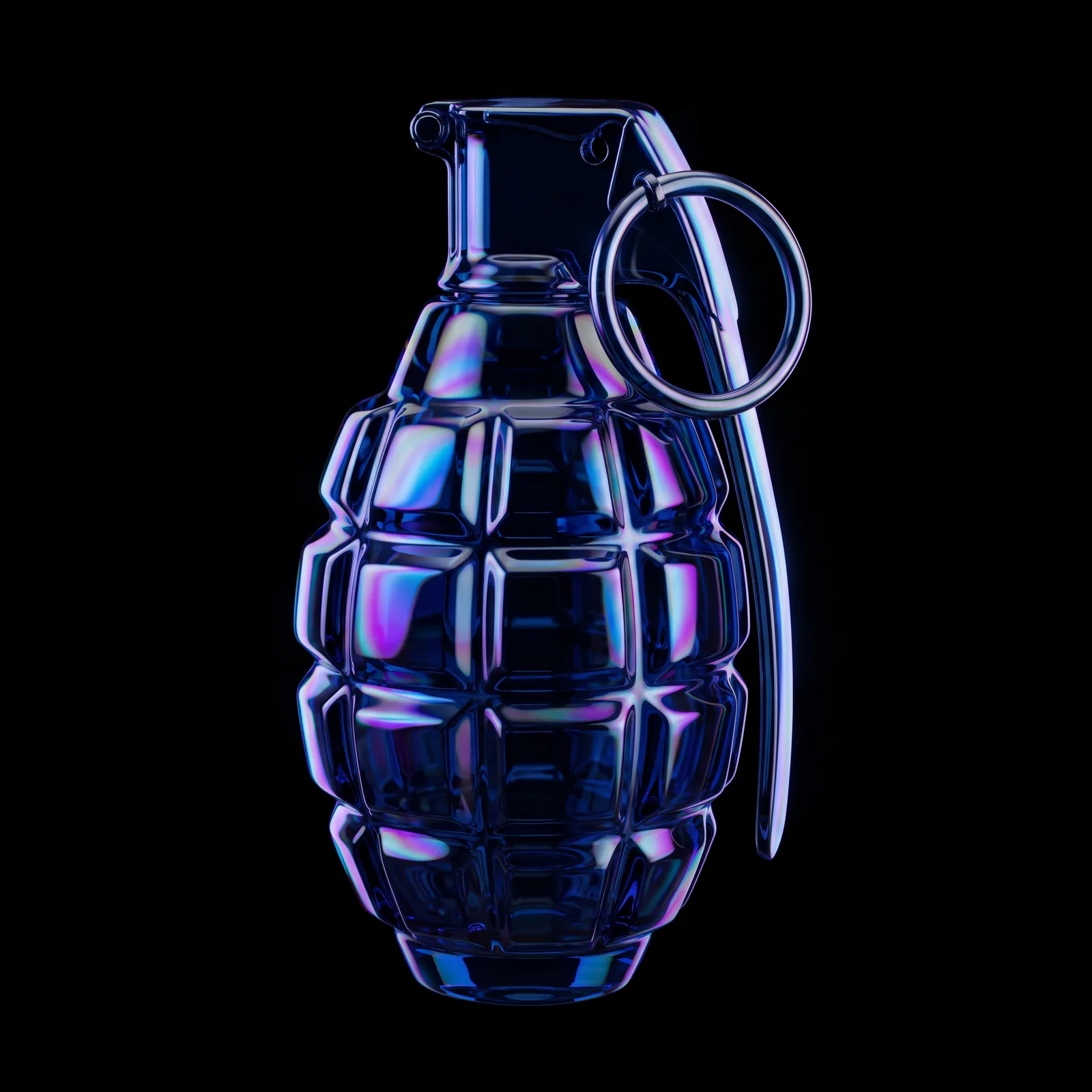
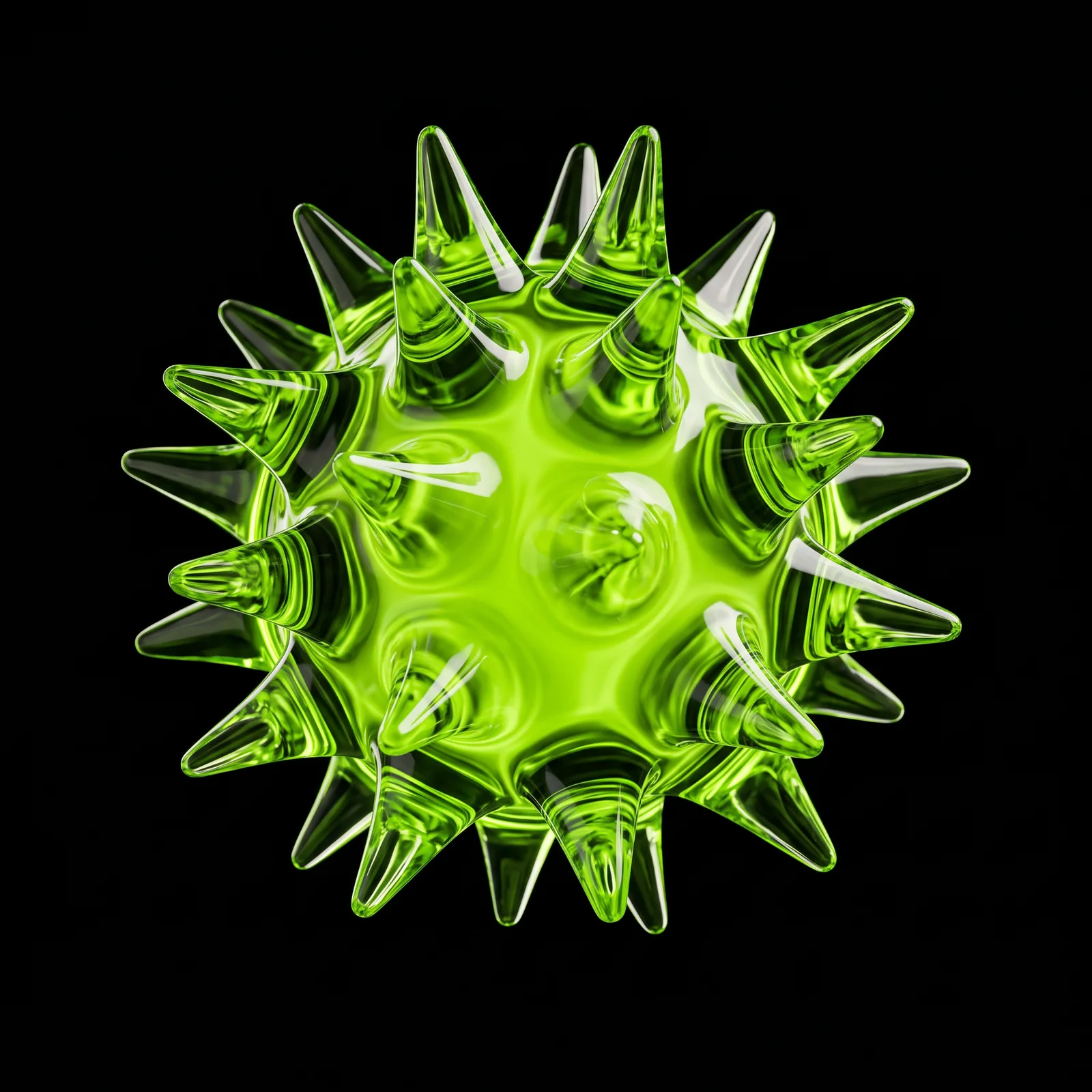
Glass Objects Filled with Miniatures — GPT Image 2.5 (Sunburst) AI prompt preview 1
1 / 4
Home/Materials prompts/Glass Objects Filled with Miniatures

Materials

Glass Objects Filled with Miniatures AI Prompt

Best for GPT Image 2.5 (Sunburst)

Create clear glass objects densely packed with colorful miniatures on a black background. Enter an outer object and a filling; the prompt handles materials, an upright pose and studio lighting. Use the images for posters, cover art or social graphics.

Prompt preview

OUTER: [object] FILLING: [small objects] Photorealistic luxury CGI product shot. Preserve OUTER's authentic silhouette, proportions and fine construction details; transform EVERY outer part, seam and closure into colorless clear glass. Hollow shell, realistic wall thickness, refraction and restrained reflections. Remove all branding, labels, lettering and logos, including embossed marks; brand names specify shape only. Densely pack the…

Make it yours

What can you change?

Ideas for Glass Objects Filled with Miniatures. Paste the full prompt into your AI chat, then add one of these requests. Replace the words in brackets with your own choices.

  • Material and finish

    Change the surface to [material] with a [matte / glossy / brushed] finish. Keep the object’s shape and composition unchanged.
  • Color palette

    Rewrite this prompt using [your colors]. Keep the subject, composition and overall style unchanged.
  • Background

    Change the background to [your background]. Keep the subject and its visual treatment unchanged.
  • Subject

    Adapt this prompt to show [your subject]. Keep the visual style, lighting and composition as close to the original as possible.

These are starting points based on this prompt’s category. Review the revised prompt before generating; changing its main material or effect will change the look.

FramePrompts instructions

Give your object a new material.

Use an image of your own object and a material prompt to explore a different surface or finish. The chrome example below illustrates the workflow; use the material described in your chosen prompt.

Before you start

An image of your object · A material prompt · An image tool with Nano Banana

A universal walkthrough with an example. Check the selected prompt’s model and input requirements before starting.

01

Attach your object

Open your image tool and select the Nano Banana model recommended on the prompt page. Upload a clear image of the object you want to transform. In the example interface, this area is called Control images; other tools may call it an attachment or reference image.

An object image attached in the Control images panel
Use your own object as the input image. Click image to enlarge.
02

Paste the material prompt

Select Copy prompt on FramePrompts and paste the full text into the generation field. Keep your image attached to the same request. If the prompt uses a structured format such as JSON, paste the entire block. Keep its settings unchanged for your first attempt, then select Create or your tool’s generation button.

Material prompt in the request field with a control image attached and the Create button visible
The image and prompt belong in the same generation request. Click image to enlarge.
03

Compare the shape and finish

Check the outline, proportions and important details against your original. The surface should follow the selected material prompt. Different materials can change the lighting and reflections; check that the object is still recognizable before saving the result.

Original skull and snake object beside its chrome material version
Example: original object on the left, chrome interpretation on the right. Click image to enlarge.

Not what you expected?

The object’s shape changed

Attach the original again and specify which details must stay unchanged. Try: Preserve the original silhouette, proportions and small details. Change only the material and its lighting.

My interface looks different

These screenshots show one Nano Banana interface. Find the equivalent image upload, prompt field and generate button in your tool; their names and positions can differ.

Results vary between tools and generations. For changes to colors, backgrounds or other details, close this guide and open Editable on the prompt page.

Free to copy, edit and use in your preferred AI image tool.

Works well with this prompt

More Materials prompts →
Vacuum Packed Object AI-generated design created with this promptVacuum Packed ObjectEmerald Gold Effect AI-generated design created with this promptEmerald Gold EffectGlass Sky Typography AI-generated design created with this promptGlass Sky TypographyHolographic crystal glass AI-generated design created with this promptHolographic crystal glassFluffy logo effect AI-generated design created with this promptFluffy logo effect