FramePrompts
NewMaterialsMockupsTrending
Browse library ↘
Materials↗
Backgrounds↗
Mockups↗
Styles↗
Lifestyle↗
Effects↗
LogoTextObjects
Generations↗
ObjectsCharacters
View all prompt categories →
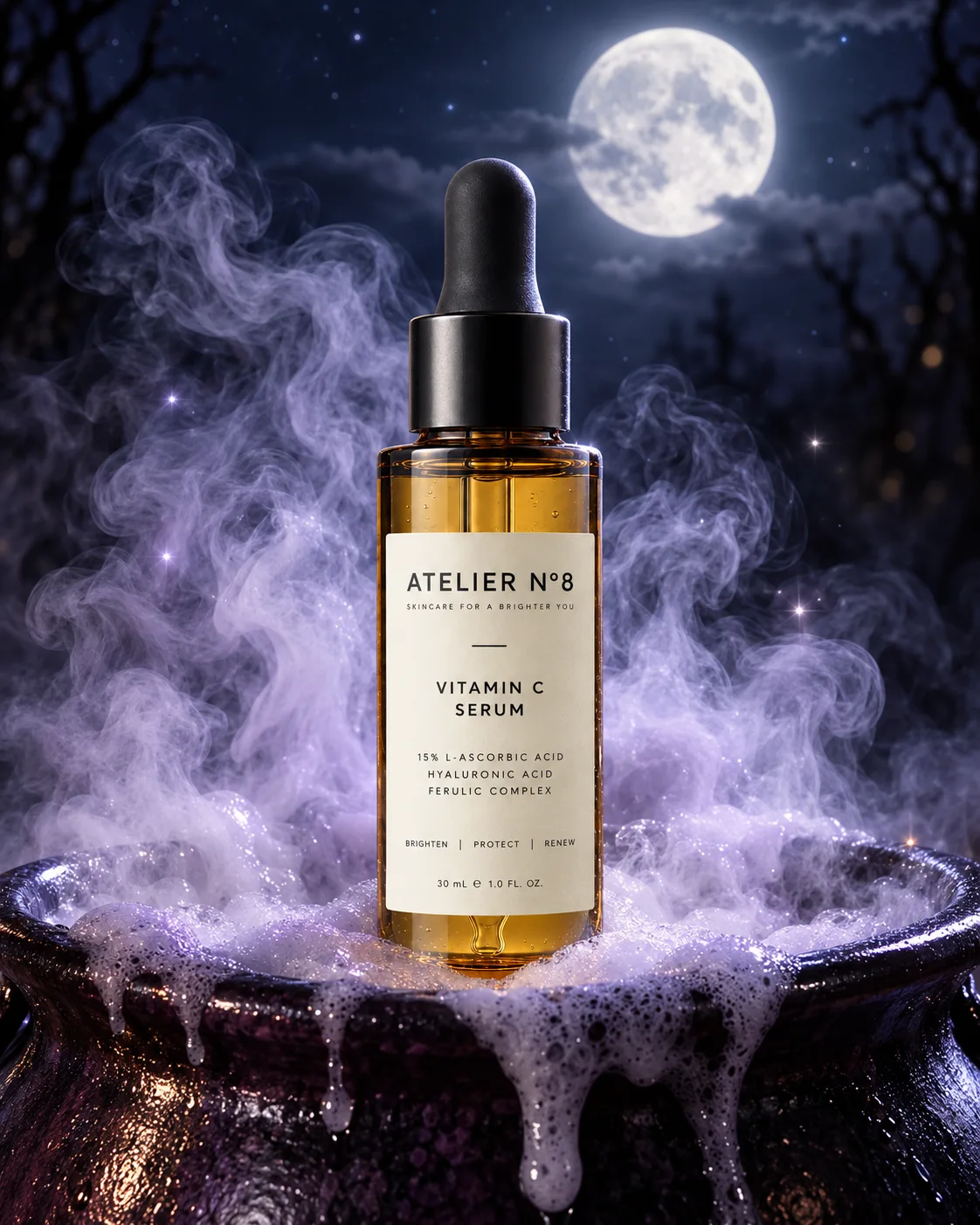
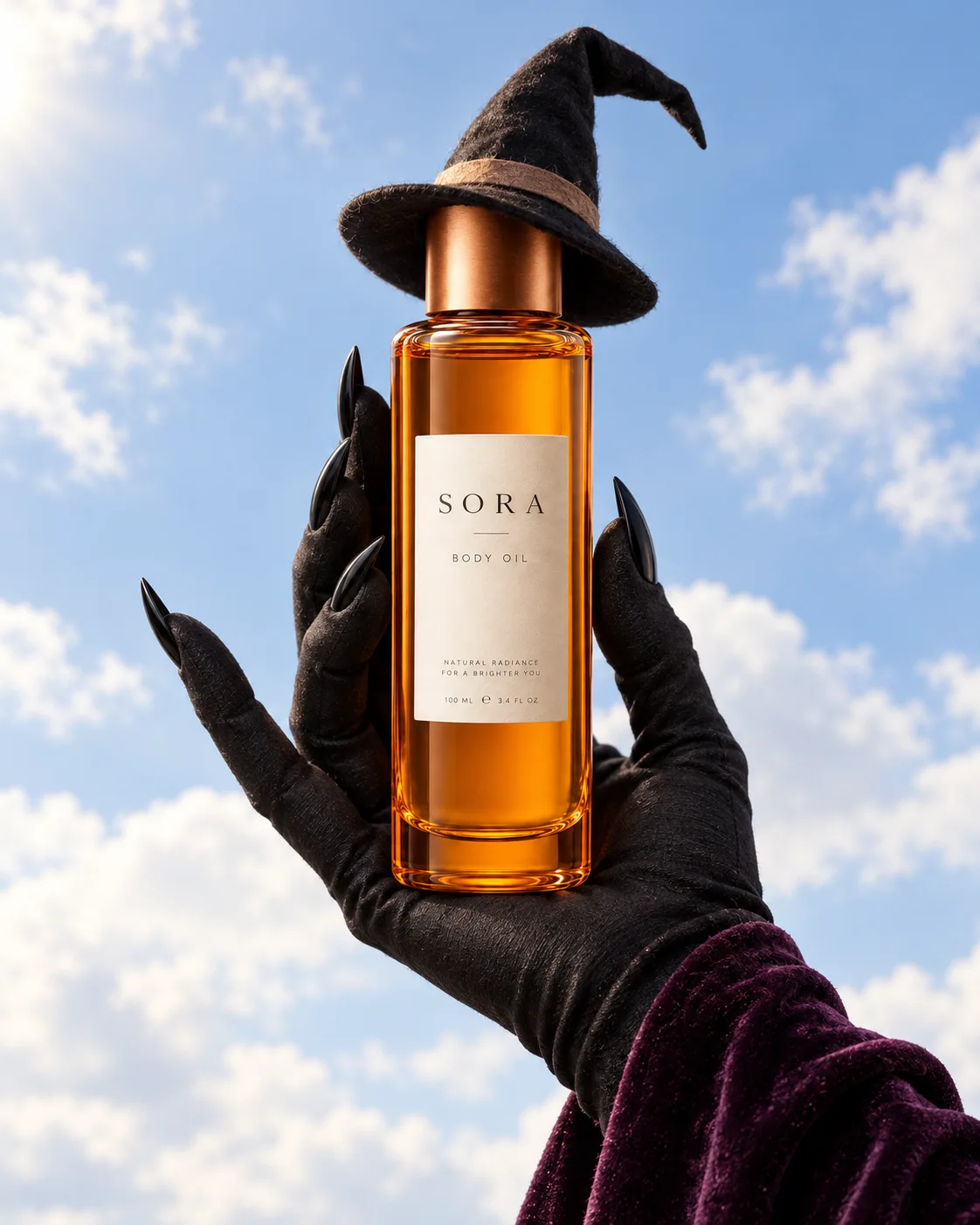
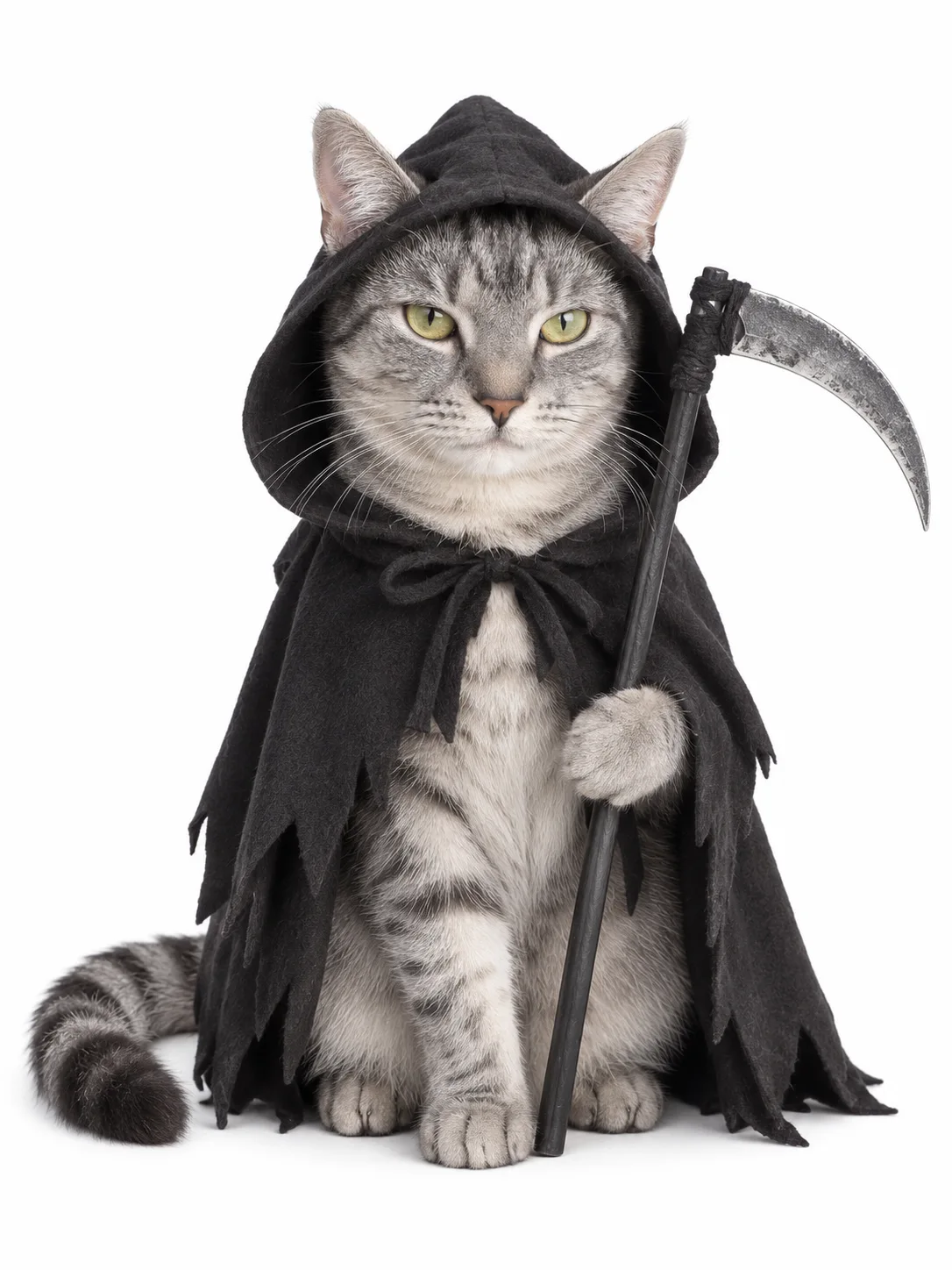
Halloween Product Photography with Monster Hands — GPT Image 2.5 (Sunburst) AI prompt preview 1
1 / 4
Home/Mockups prompts/Halloween Product Photography with Monster Hands

Mockups

Halloween Product Photography with Monster Hands AI Prompt

Best for GPT Image 2.5 (Sunburst)

Create premium Halloween product photos with a reaching monster hand, cinematic lighting, lavender fog, and dark glossy reflections. Customize the product, camera view, and creature. Generates a clean vertical 4:5 image without text overlays, ideal for seasonal ads, social posts, and ecommerce campaigns. Add a product reference to guide its appearance.

Prompt preview

Premium photorealistic Halloween product advertisement, vertical 4:5. Spacious studio composition with intentional negative space and a clear visual hierarchy: product first, monster hand second, atmosphere third. PRODUCT: [PRODUCT]. VIEW: [EXACT VIEW]. HAND: [ONE MONSTER HAND DESCRIPTION]. PRODUCT AND COMPOSITION: Exactly one product rests on a glossy dark floor, centered horizontally in the lower third. Its base sits approximately 82–84% down the frame. Make the product large enough for its defining features to read clearly at mobile viewing size, while preserving comfortable margins and natural proportions. If a product reference is suppli…

Make it yours

What can you change?

Ideas for Halloween Product Photography with Monster Hands. Paste the full prompt into your AI chat, then add one of these requests. Replace the words in brackets with your own choices.

  • Color palette

    Rewrite this prompt using [your colors]. Keep the subject, composition and overall style unchanged.
  • Background

    Change the background to [your background]. Keep the subject and its visual treatment unchanged.
  • Subject

    Adapt this prompt to show [your subject]. Keep the visual style, lighting and composition as close to the original as possible.

These are starting points based on this prompt’s category. Review the revised prompt before generating; changing its main material or effect will change the look.

FramePrompts instructions

Give your object a new material.

Use an image of your own object and a material prompt to explore a different surface or finish. The chrome example below illustrates the workflow; use the material described in your chosen prompt.

Before you start

An image of your object · A material prompt · An image tool with Nano Banana

A universal walkthrough with an example. Check the selected prompt’s model and input requirements before starting.

01

Attach your object

Open your image tool and select the Nano Banana model recommended on the prompt page. Upload a clear image of the object you want to transform. In the example interface, this area is called Control images; other tools may call it an attachment or reference image.

An object image attached in the Control images panel
Use your own object as the input image. Click image to enlarge.
02

Paste the material prompt

Select Copy prompt on FramePrompts and paste the full text into the generation field. Keep your image attached to the same request. If the prompt uses a structured format such as JSON, paste the entire block. Keep its settings unchanged for your first attempt, then select Create or your tool’s generation button.

Material prompt in the request field with a control image attached and the Create button visible
The image and prompt belong in the same generation request. Click image to enlarge.
03

Compare the shape and finish

Check the outline, proportions and important details against your original. The surface should follow the selected material prompt. Different materials can change the lighting and reflections; check that the object is still recognizable before saving the result.

Original skull and snake object beside its chrome material version
Example: original object on the left, chrome interpretation on the right. Click image to enlarge.

Not what you expected?

The object’s shape changed

Attach the original again and specify which details must stay unchanged. Try: Preserve the original silhouette, proportions and small details. Change only the material and its lighting.

My interface looks different

These screenshots show one Nano Banana interface. Find the equivalent image upload, prompt field and generate button in your tool; their names and positions can differ.

Results vary between tools and generations. For changes to colors, backgrounds or other details, close this guide and open Editable on the prompt page.

Free to copy, edit and use in your preferred AI image tool.

Works well with this prompt

More Mockups prompts →
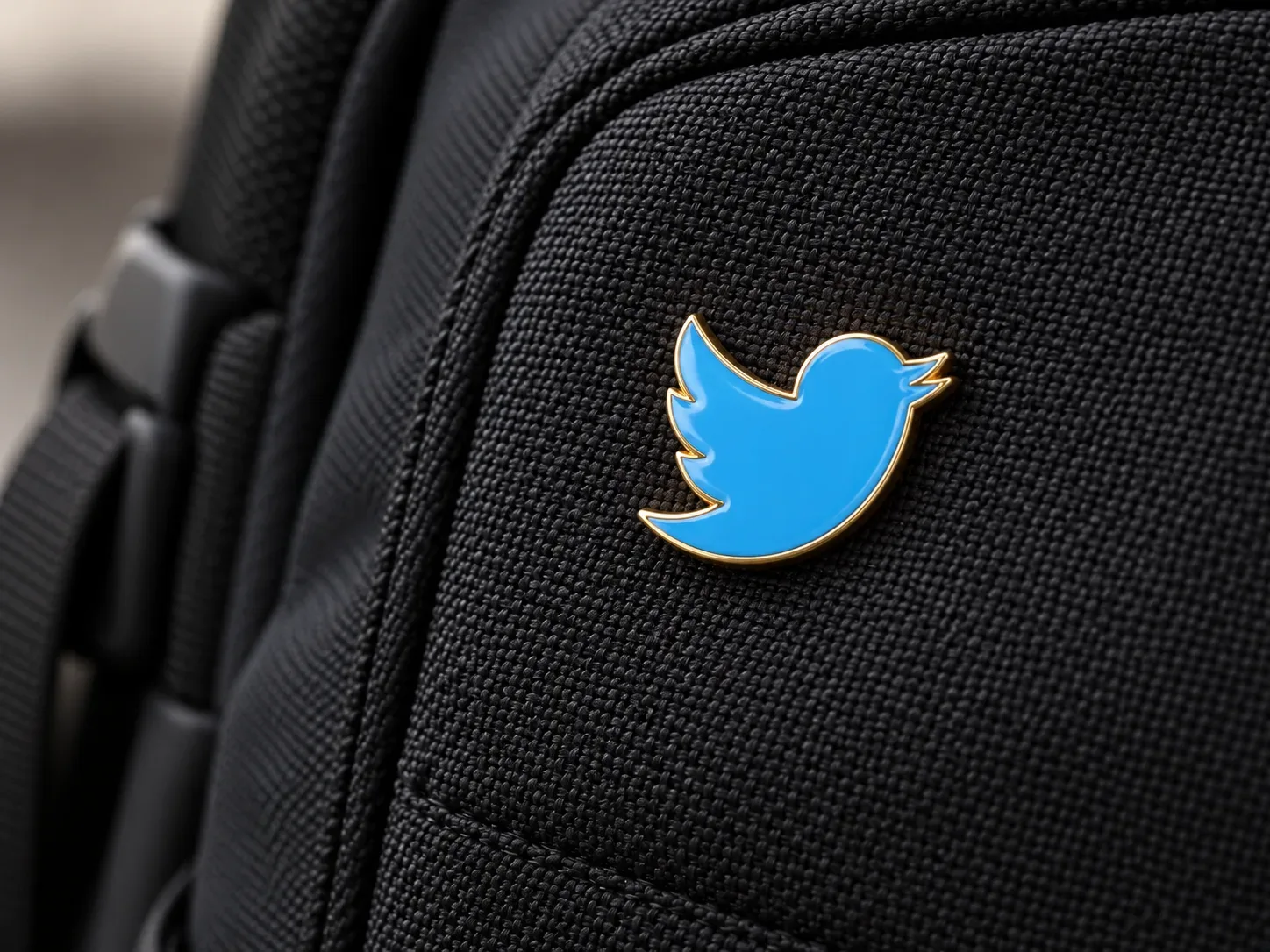
Hard Enamel Pin Mockup on Backpack AI-generated design created with this promptHard Enamel Pin Mockup on BackpackVacuum Packed Object AI-generated design created with this promptVacuum Packed ObjectApp Icon Halloween Design AI-generated design created with this promptApp Icon Halloween DesignEnamel Pin Render AI-generated design created with this promptEnamel Pin RenderGlass Objects Filled with Miniatures AI-generated design created with this promptGlass Objects Filled with Miniatures