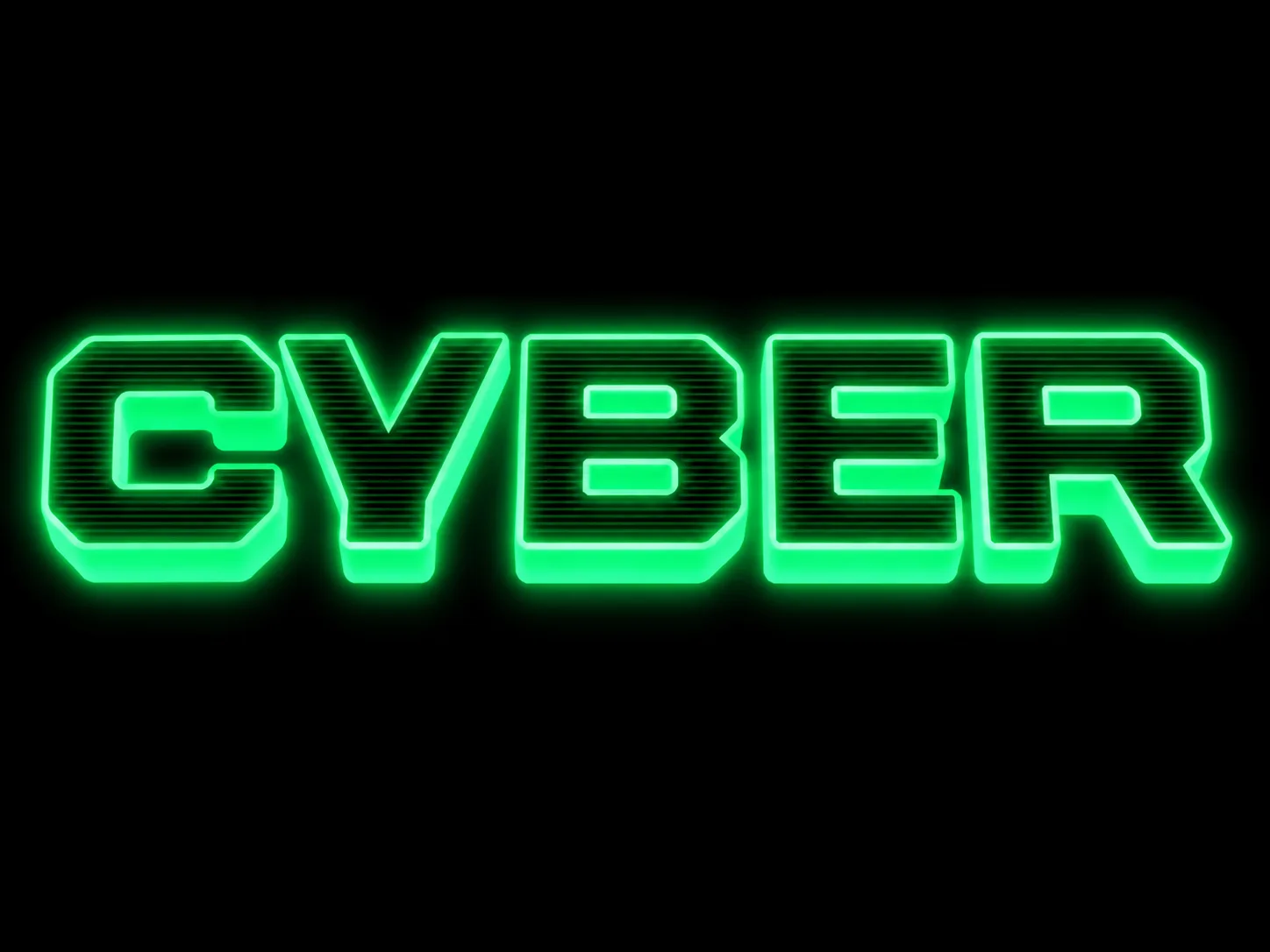
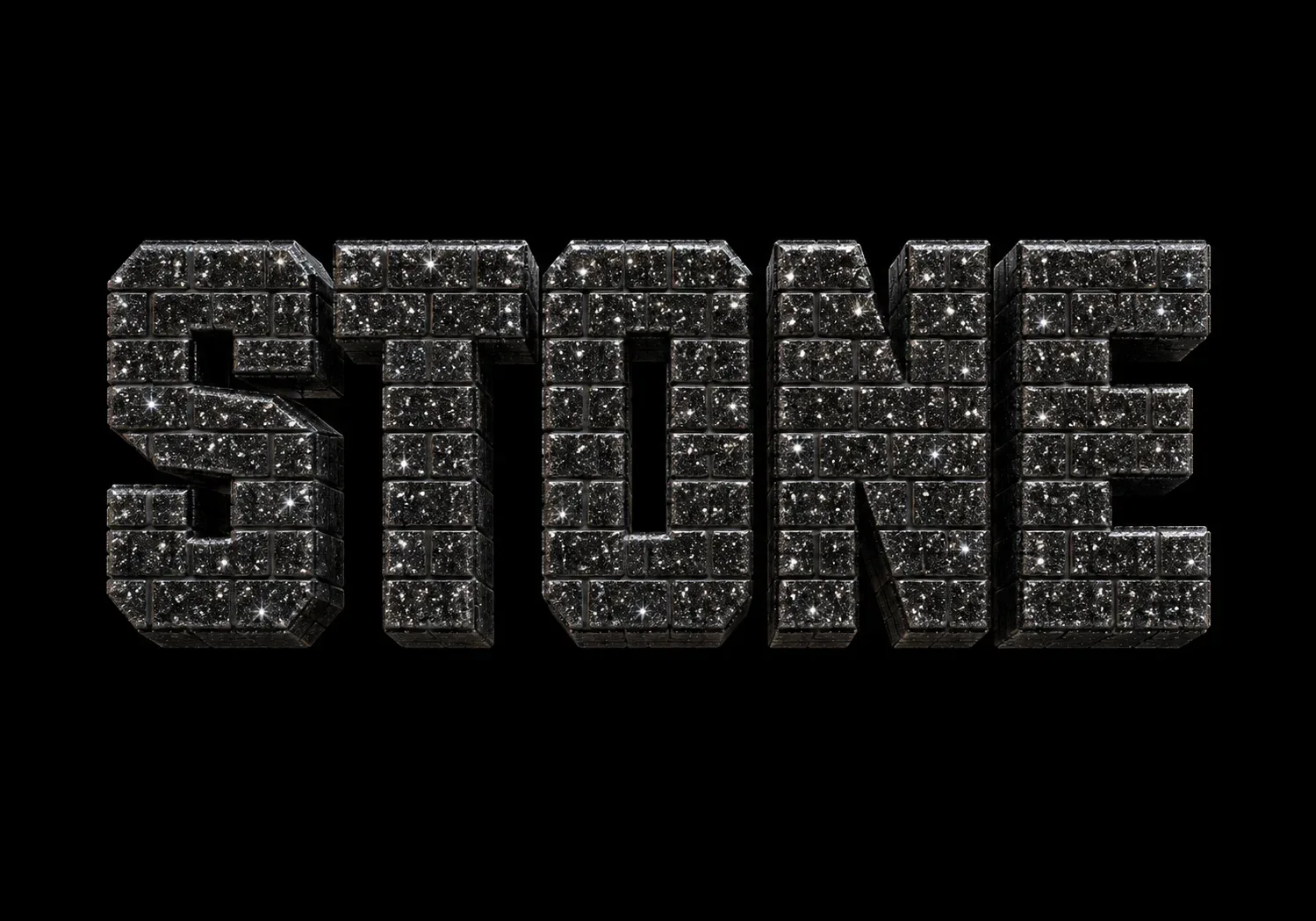
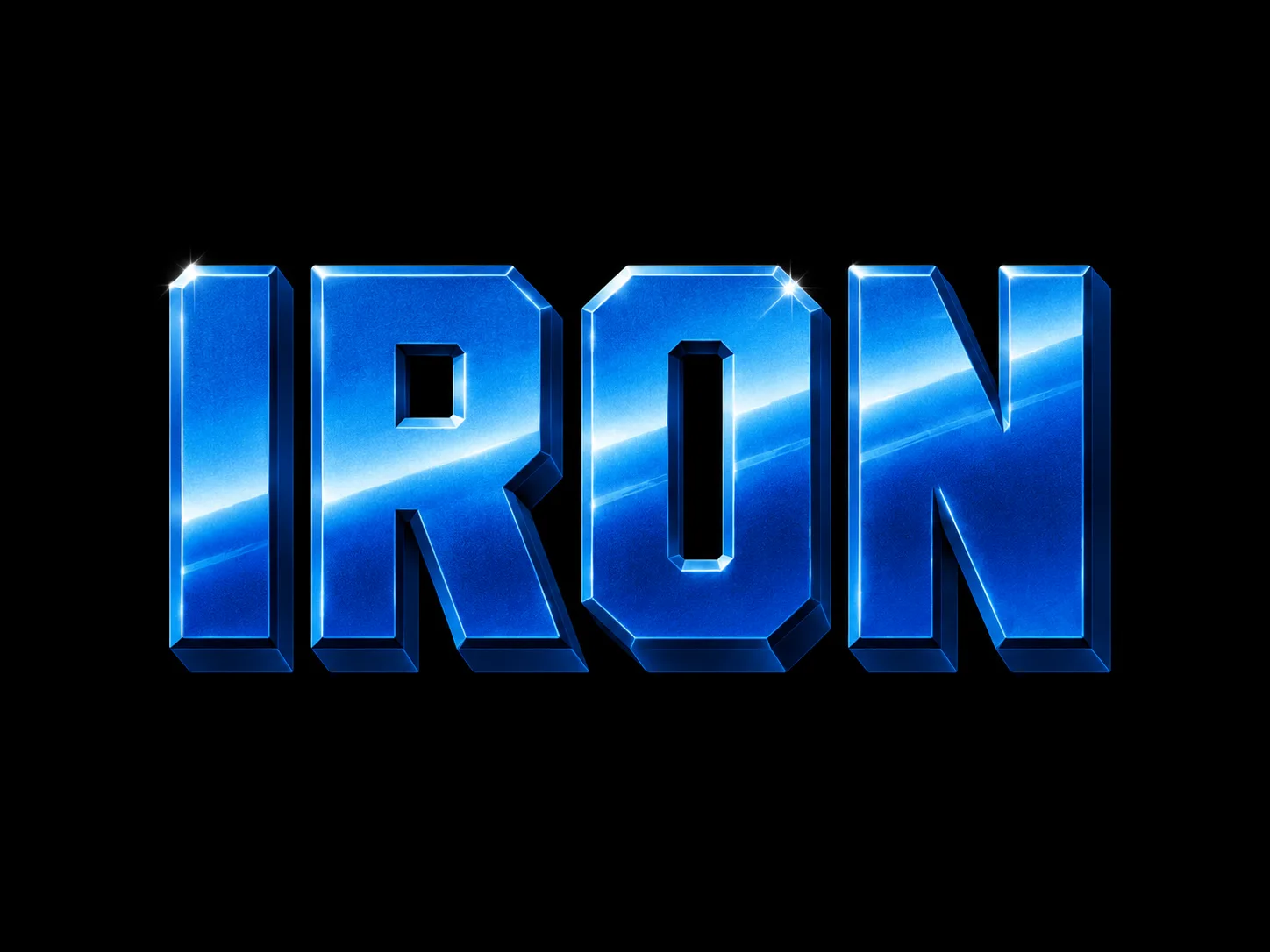
Turn your words into an image. Start with a text-effect prompt, replace its sample wording and generate your own lettering. The purple example shows the steps; the look comes from whichever prompt you choose.
This walkthrough applies to the selected prompt type. Check its listed model and input requirements before starting.
01
Paste the prompt and find the wording Copy the full prompt from FramePrompts and paste it into a new ChatGPT message. Look for the text placeholder, such as [YOUR TEXT], or the sample phrase the prompt asks the image to spell. This text-based workflow does not need an uploaded logo or photo unless the selected prompt specifically asks for one.
Find the part that defines the words in the finished image. Click image to enlarge. 02
Replace it with your words Replace the placeholder, including its brackets, with the exact wording you want. In this example, [YOUR TEXT] becomes PLAY HARD. Check spelling and any word-count or layout requirements in the prompt. Keep the remaining instructions for your first attempt, then send the message to generate the image.
Change the wording, then send the complete prompt. Click image to enlarge. 03
Check every letter Read the result carefully. Check spelling, missing letters, word order and whether the layout is readable. Save the version you like. To explore another phrase, replace the wording in the original prompt and generate again.
Example result using the replacement phrase PLAY HARD. Click image to enlarge. Not what you expected? The words are misspelled State the exact phrase again: The text must read “[your words]” exactly. Correct the lettering while keeping the visual style. Check the next result before using it.
The phrase does not fit Try fewer words, or ask for a layout that accommodates your phrase. Longer wording can change the composition shown in the preview.
Results vary between tools and generations. For safe input changes, close this guide and open Editable on the prompt page.